Find & Replace for Webflow
Search and replace text across your entire Webflow site directly in the Designer. Works with both CMS and static content.
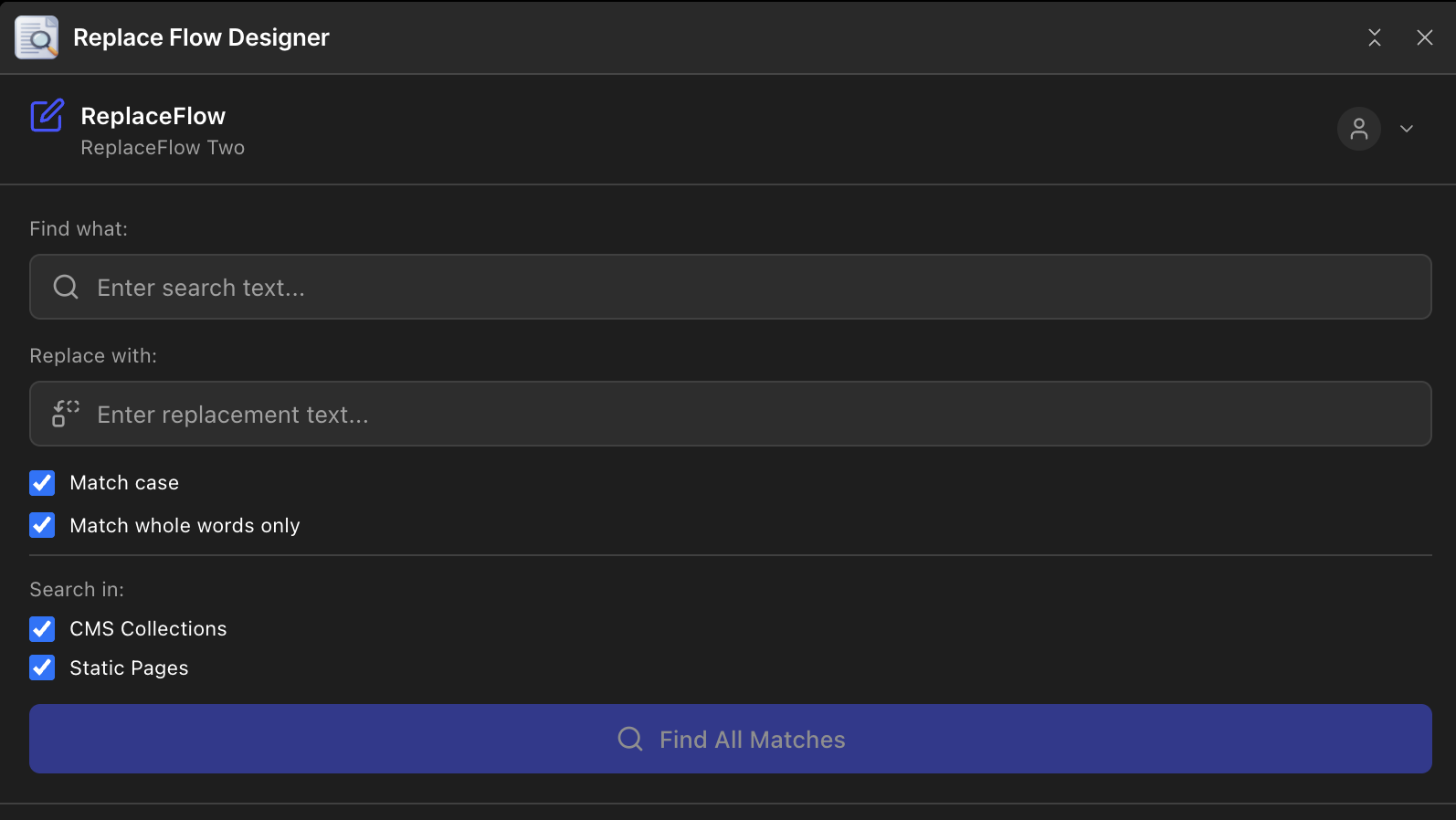
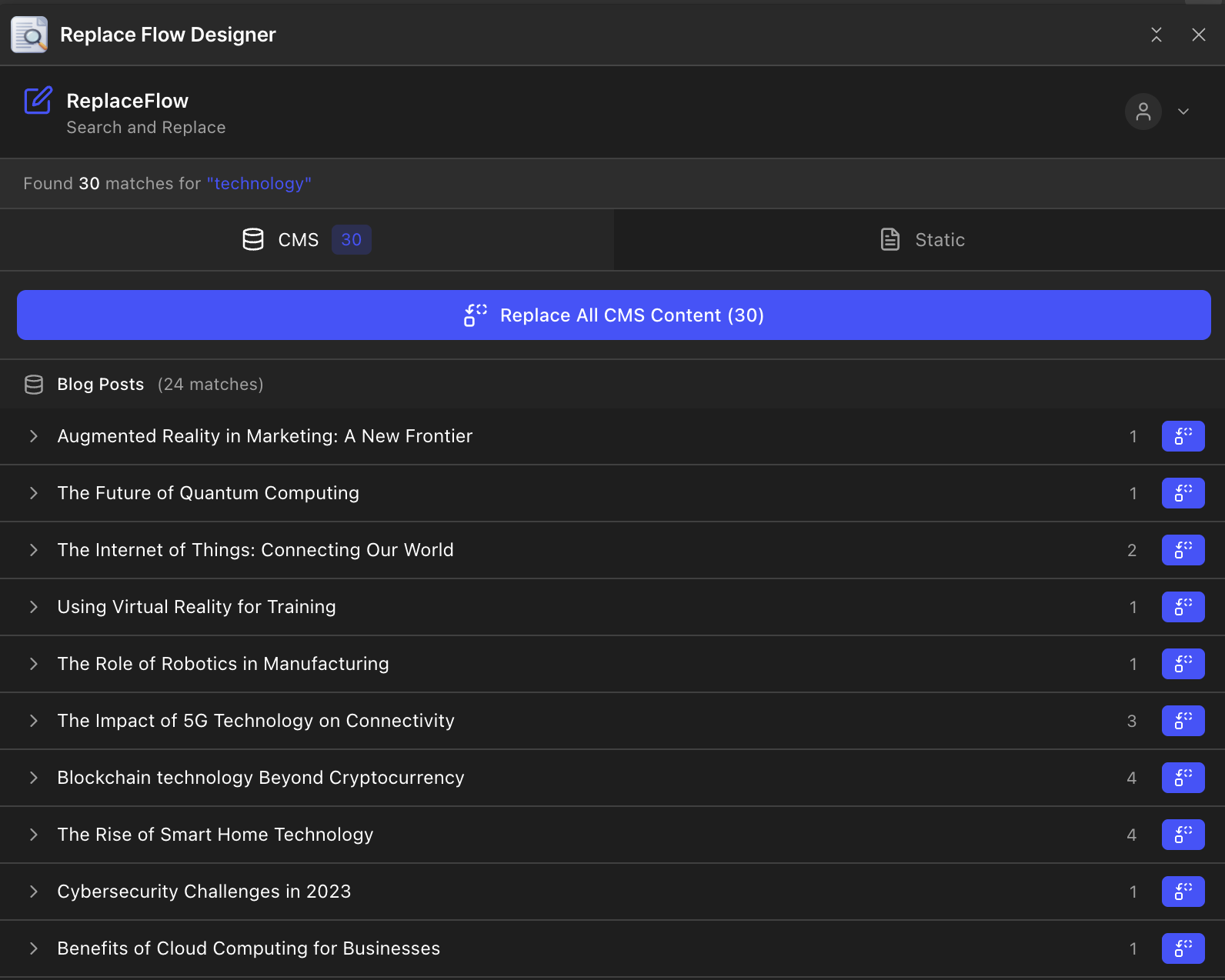
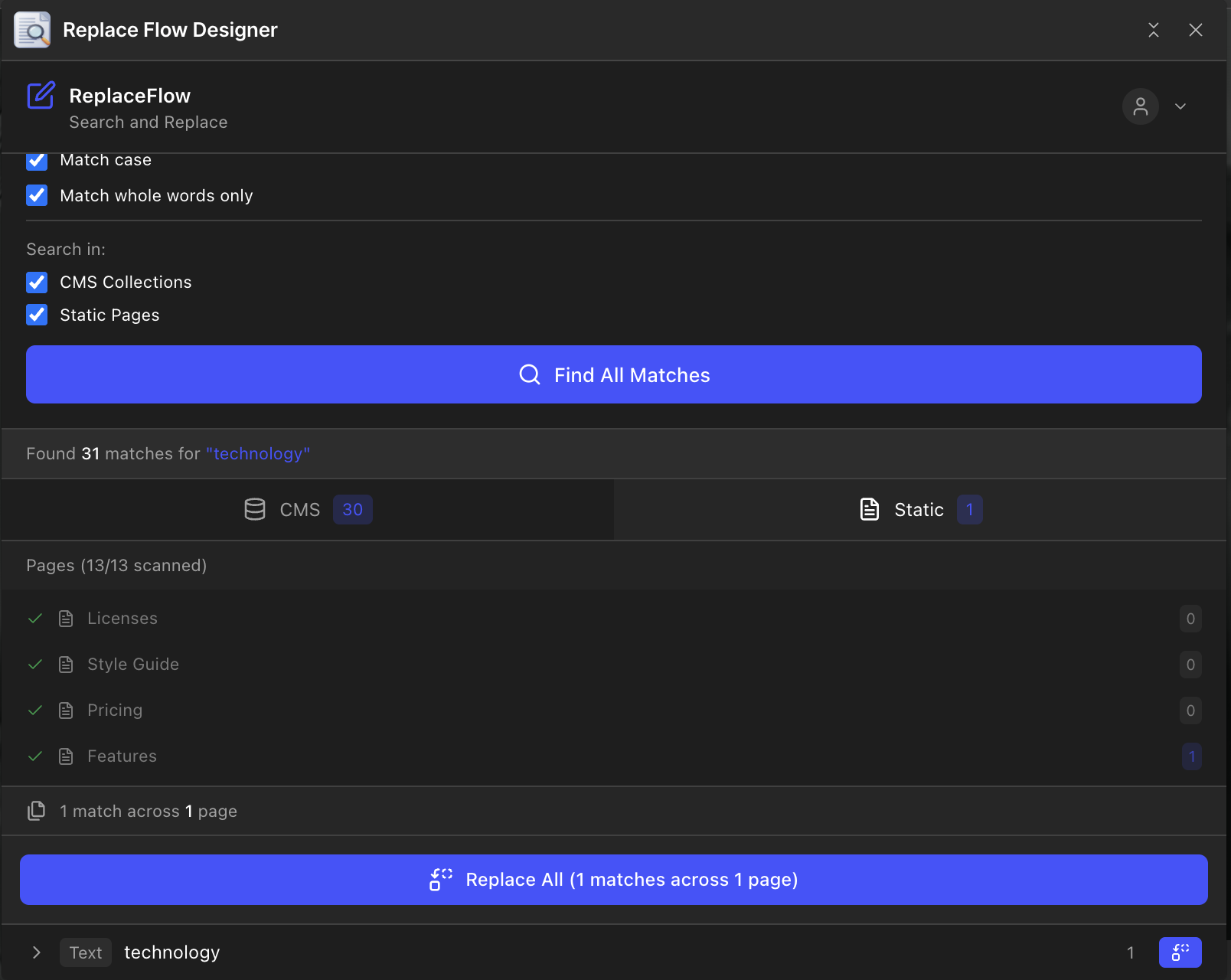
Find & Replace directly in the Designer
No more switching between tabs. Search and replace text without leaving Webflow.
CMS + Static Content
Search across all your CMS collections and static page content in one place.
Replace All or One-by-One
Replace all matches at once, or review and replace them individually with full control.
Works in the Designer
Access ReplaceFlow right from the Webflow Designer panel. No external tools needed.
Simple, affordable pricing
Choose the plan that's right for you and start updating your Webflow site today.
Free
Try it out
- 5 searches
- 10 replacements
- CMS content
- ×Static page content
- ×Replace All
Unlimited
For teams and power users
- Unlimited searches
- Unlimited replacements
- CMS content
- Static page content
- Replace All
- Priority support
Frequently Asked Questions
Find answers to common questions about our Designer Extension.
What is ReplaceFlow?
ReplaceFlow is a Webflow Designer Extension that lets you find and replace text across your entire site directly within the Webflow Designer. It works with both CMS collections and static page content.
How do I install the extension?
After signing up, you'll be able to install ReplaceFlow directly from the Webflow Designer. Go to Apps in the Designer sidebar, search for ReplaceFlow, and click Install. The extension will appear in your Designer panel.
Does it work with both CMS and static content?
Yes! ReplaceFlow searches both your CMS collections (blog posts, products, etc.) and static page content (headings, paragraphs, buttons). You can choose to search one or both using the checkboxes in the extension.
Will this affect my design or layout?
No, ReplaceFlow only modifies text content. Your design, styles, classes, and layouts remain completely untouched. It's just like manually editing text, but much faster.
Can I preview changes before replacing?
Yes! When you search, ReplaceFlow shows you all matches with highlighted text previews. You can expand each result to see the full context before deciding to replace. You can also replace items one at a time or all at once.
Can I undo changes?
For static content, you can use Webflow's built-in undo (Cmd/Ctrl+Z) immediately after making changes. For CMS content, you can run another find and replace with the original text, or restore from a Webflow backup.
Do I need to publish for changes to take effect?
Changes to static content appear immediately in the Designer. CMS changes are saved to your collection items right away. To see changes on your live site, you'll need to publish as usual.
Ready to simplify your Webflow content management?
Join the community of Webflow users who save time with our Find & Replace tool.
Get Started for Free